Screen Emails
Overview
This feature allows you to filter emails in your inbox in a semi-automatic way. It enables you to perform two main actions :
Dislike an Email
This action moves the selected emails to a dedicated folder named "Screen Emails" (default label). As a side effect, the senders of those emails are automatically added to the Block List, which is managed by Filters.
Like an Email
Liking an email places the sender on the White List, which removes them from the Block List if they were previously listed there.
How to Proceed
To screen emails :
- Go to the Inbox folder of any mailbox.
- Click the "Screen" button.
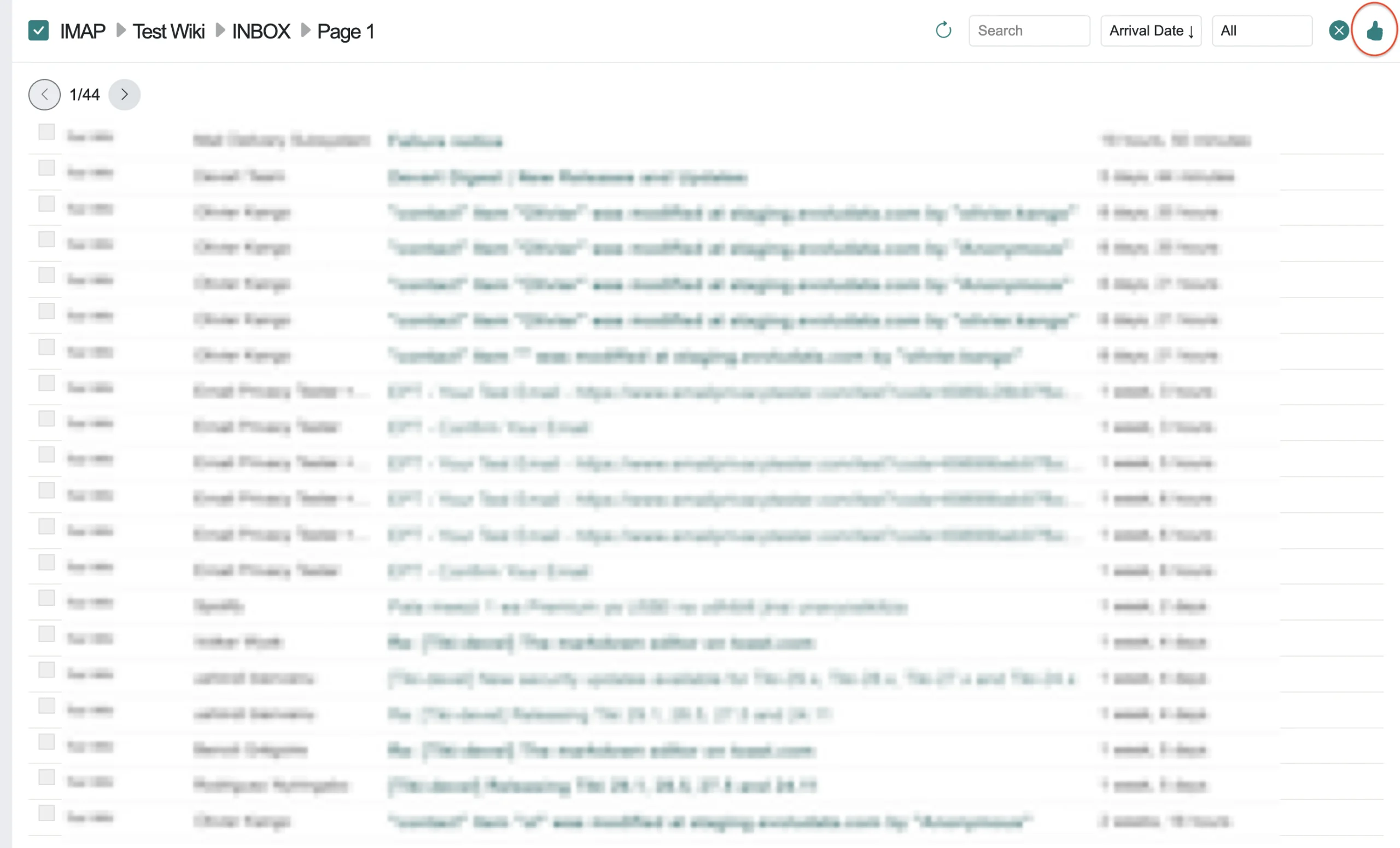
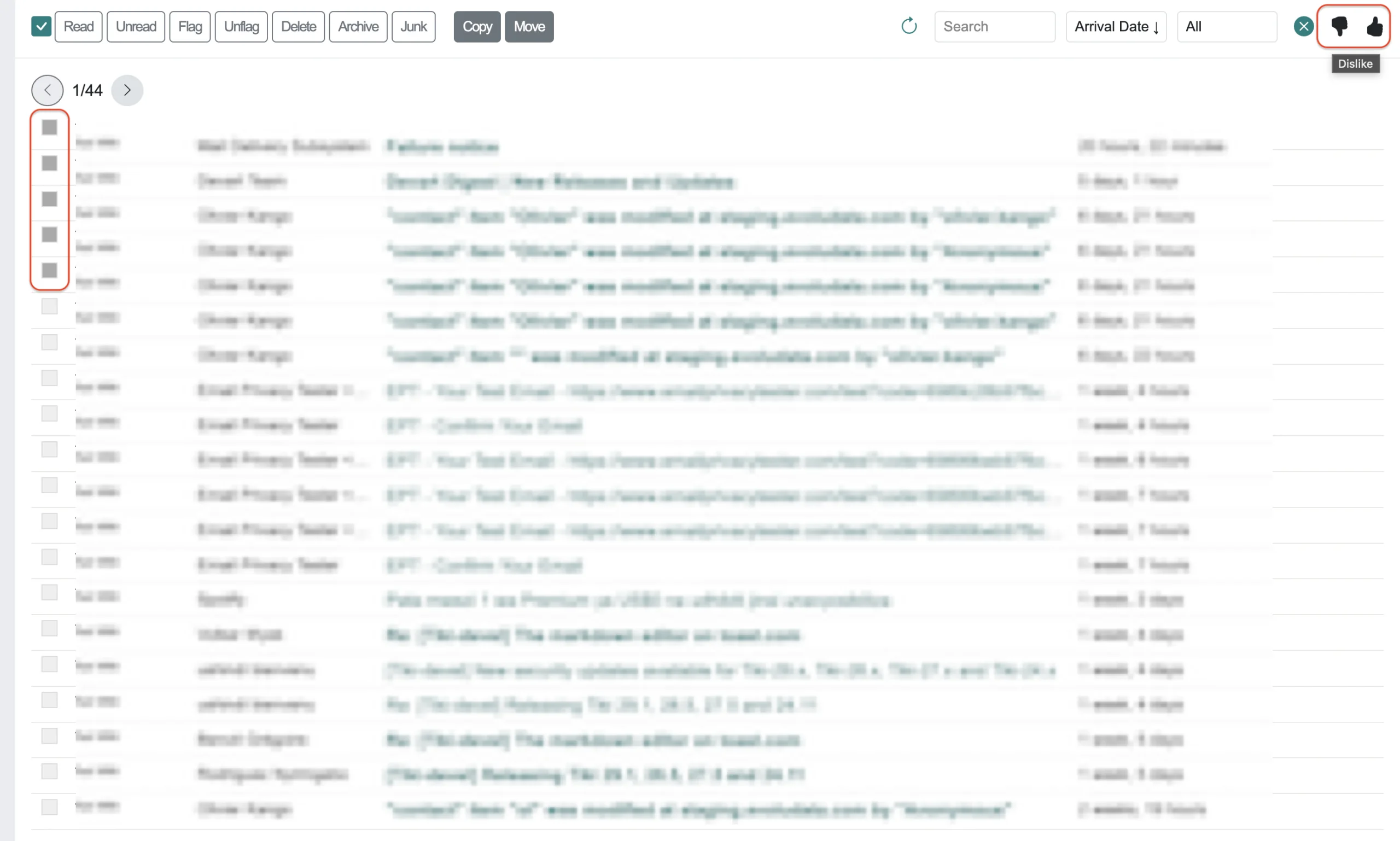
- Select one or more emails, then choose an action (Like or Dislike).
Behavior
- Liked emails remain in the inbox, and their senders are white-listed.
- Disliked emails are moved to the "Screen Emails" folder, where you can decide what to do next (e.g., delete, mark as spam, archive, flag, etc.).
On this page